

If you've ever exported a model from Blender into a game engine only to find it's the wrong size, you're not alone. Getting scale to translate correctly between Blender and any given engine is one of those problems that can really trip you up, and there are probably a dozen different ways to solve it. This is the method I use to get 3D objects into Leadwerks from Blender, and I've found it works consistently every time.
Understanding Leadwerks' Grid
Leadwerks uses an old-school power-of-two grid system, but its actual measurements are fully modern and metric. By default, each default minor grid square in Leadwerks represents 16cm, and a major grid square — the more prominent lines you see in the editor — spans 8 minor squares per edge, making each major grid square 128cm across.
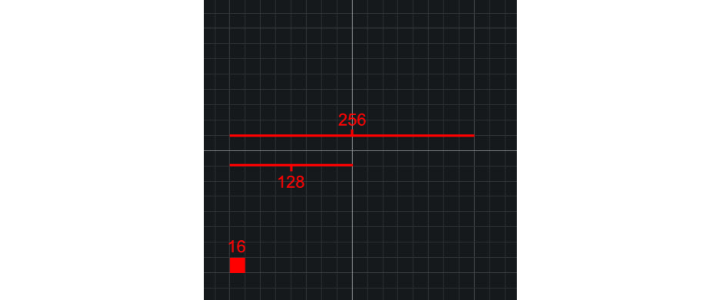
Setting Up Blender's Grid to Match
The first step is making Blender's own grid visually match what you'll see in Leadwerks, so you can judge scale accurately while modeling. In Blender, open the Overlay panel dropdown and set Grid Subdivisions to 8. This gives you the same 8-subdivisions-per-major-square structure Leadwerks uses. Next, you’re going to want to set Scale to 1.28.
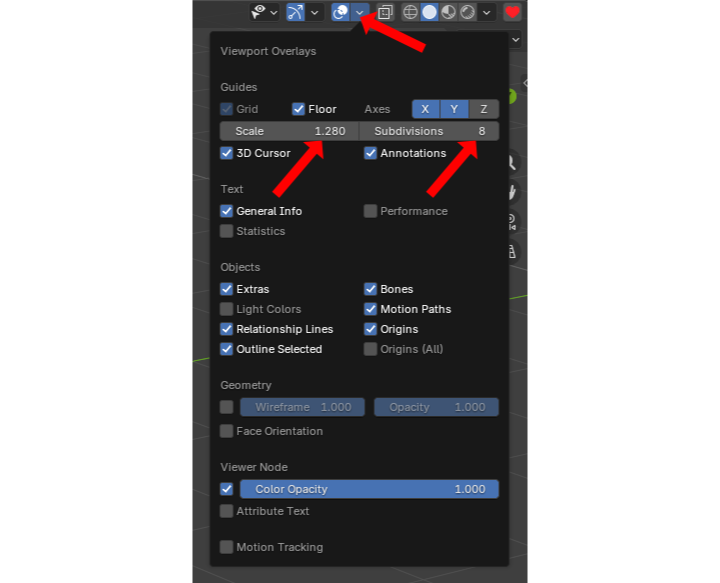
Blender's Unit System
Next, go to Blender's Scene tab in the right-side panel, find Units. You can do one of two things here as both work equally well. You can simply set Blender’s Units to None (which is what I do) or ensure they’re set to Metric with Centimeters for the Length. Both ways will get your models from Blender into Leadwerks 5 at the correct size.
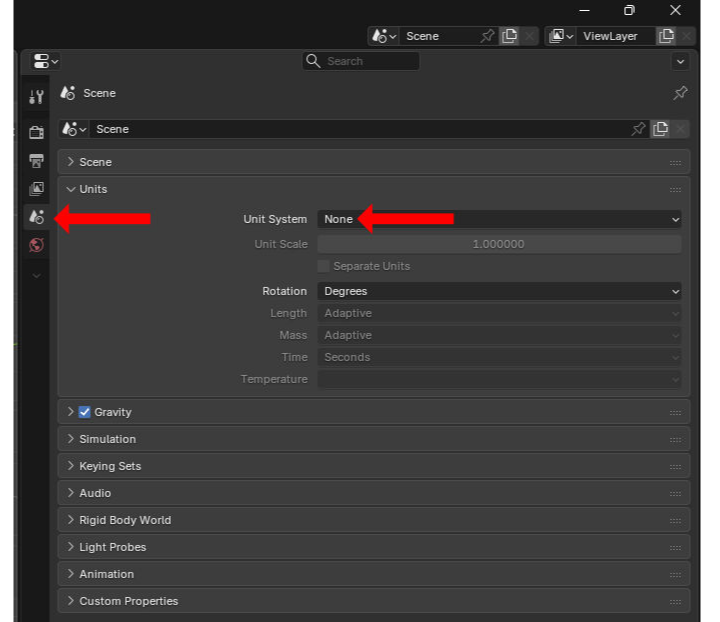
Confirming the Setup with a Default Cube
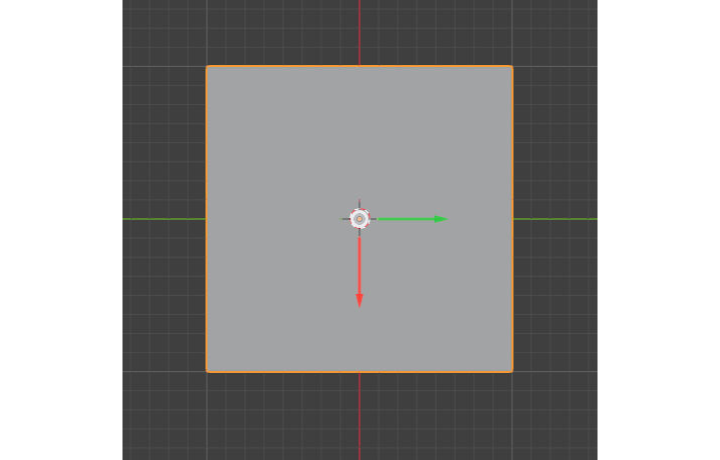
With the grid and units set up, create a default cube in Blender. At Blender's native scale, this cube spans two major grid squares per edge — meaning 16 minor grid squares per edge. Since each minor grid square represents 16cm in Leadwerks, that works out to 16 × 16 = 256cm per edge once everything lines up correctly on export. This is the number you're aiming to confirm once the cube reaches Leadwerks.
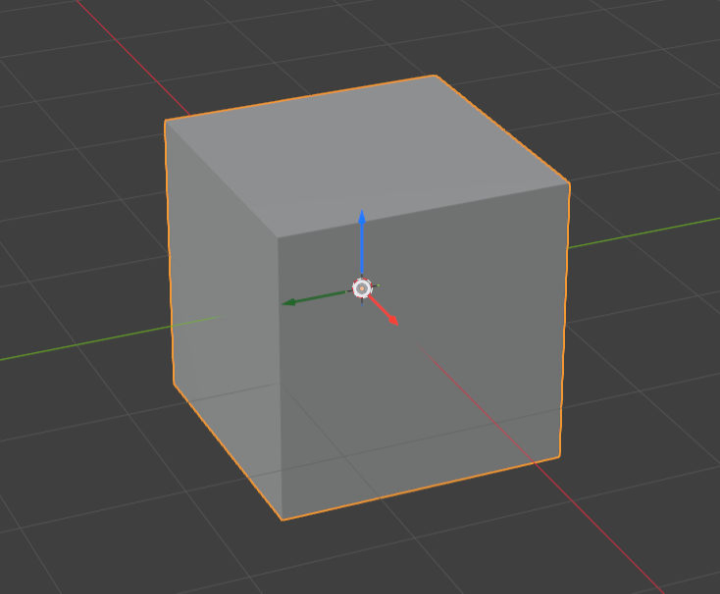
Exporting from Blender
You can export your models for use in Leadwerks 5 in any of the following formats: FBX, OBJ, and GLB/GLTF. Exporting is simple – just ensure you have Selected Objects ticked so you only export the models you want and not everything in your Blender scene, that scale is set to 1.00, and that Y Up is what’s there for the Up category. These settings will be the same regardless of which file format you use.
Getting Models into Leadwerks
You can export directly into your Leadwerks project folder, into its Models subfolder, saving you a step of moving files around afterward.
FBX files need to be converted to Leadwerks' native MDL format. Do this by right-clicking the FBX file in the right-side panel in the Leadwerks’ editor and selecting Convert File to MDL. OBJ files are natively supported and don't require conversion — the same is true for GLTF.

Confirming the Result
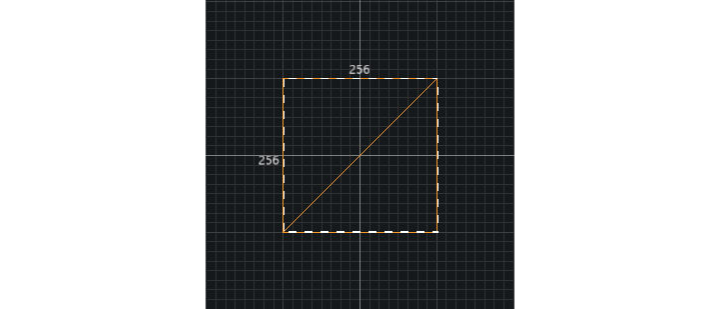
Drag your exported cube into the Leadwerks viewport. If everything's been set up correctly, it should measure exactly 256cm per edge — confirming the scale carried over properly from Blender.
I hope you found this tutorial useful. I'll try to post more tutorials in the future.